Voice Party
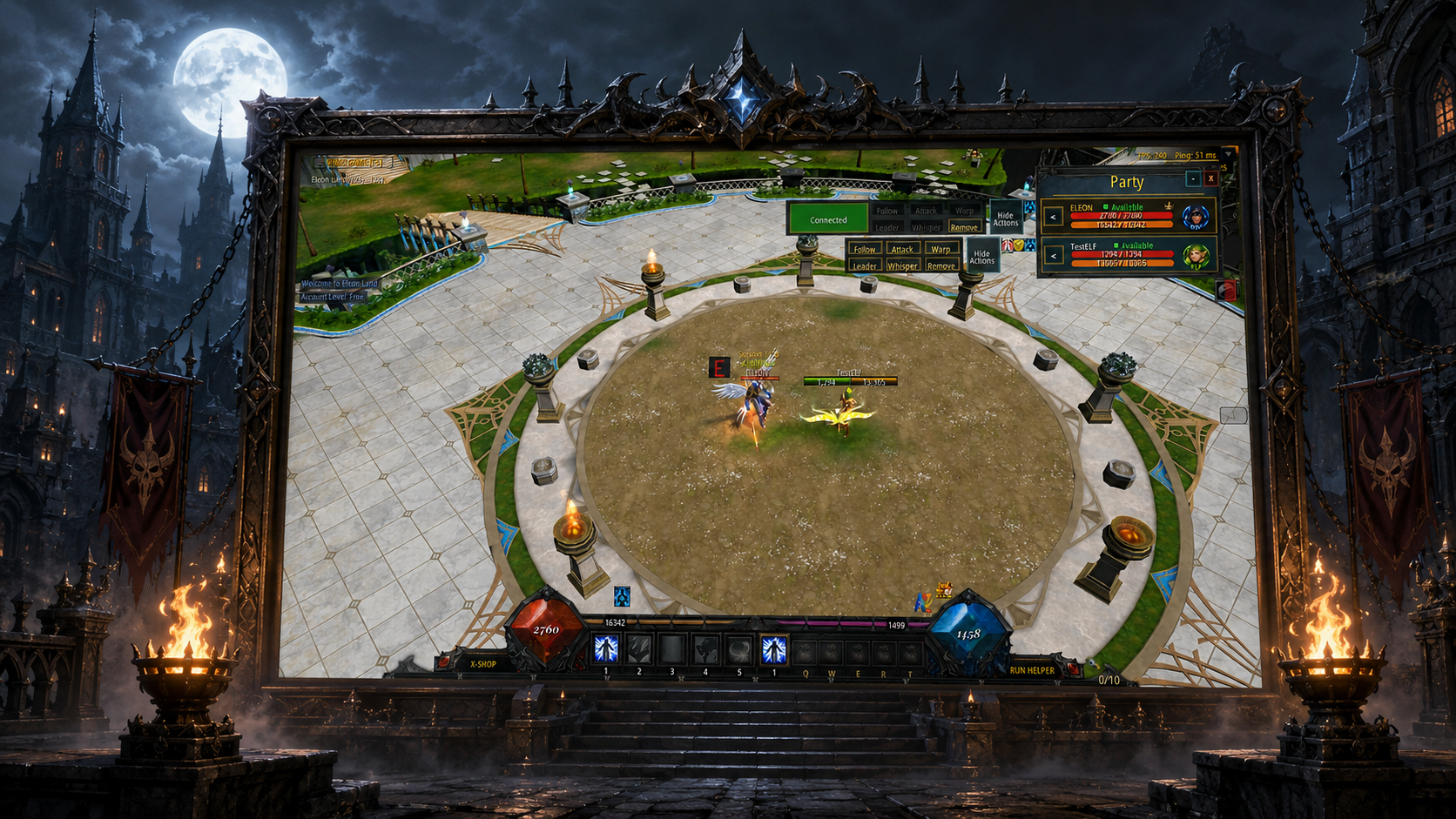
Voice Party allows party members to communicate directly inside the game without using Discord, TeamSpeak or any other external application.
Every party receives its own private voice room that can only be accessed by members of that party.
How to Enable Voice Party
Open the in-game Options window.
Select the Voice section from the Options menu.
Activate the Enable Voice option.
Choose your microphone and preferred output device.
Enter a party with other players.
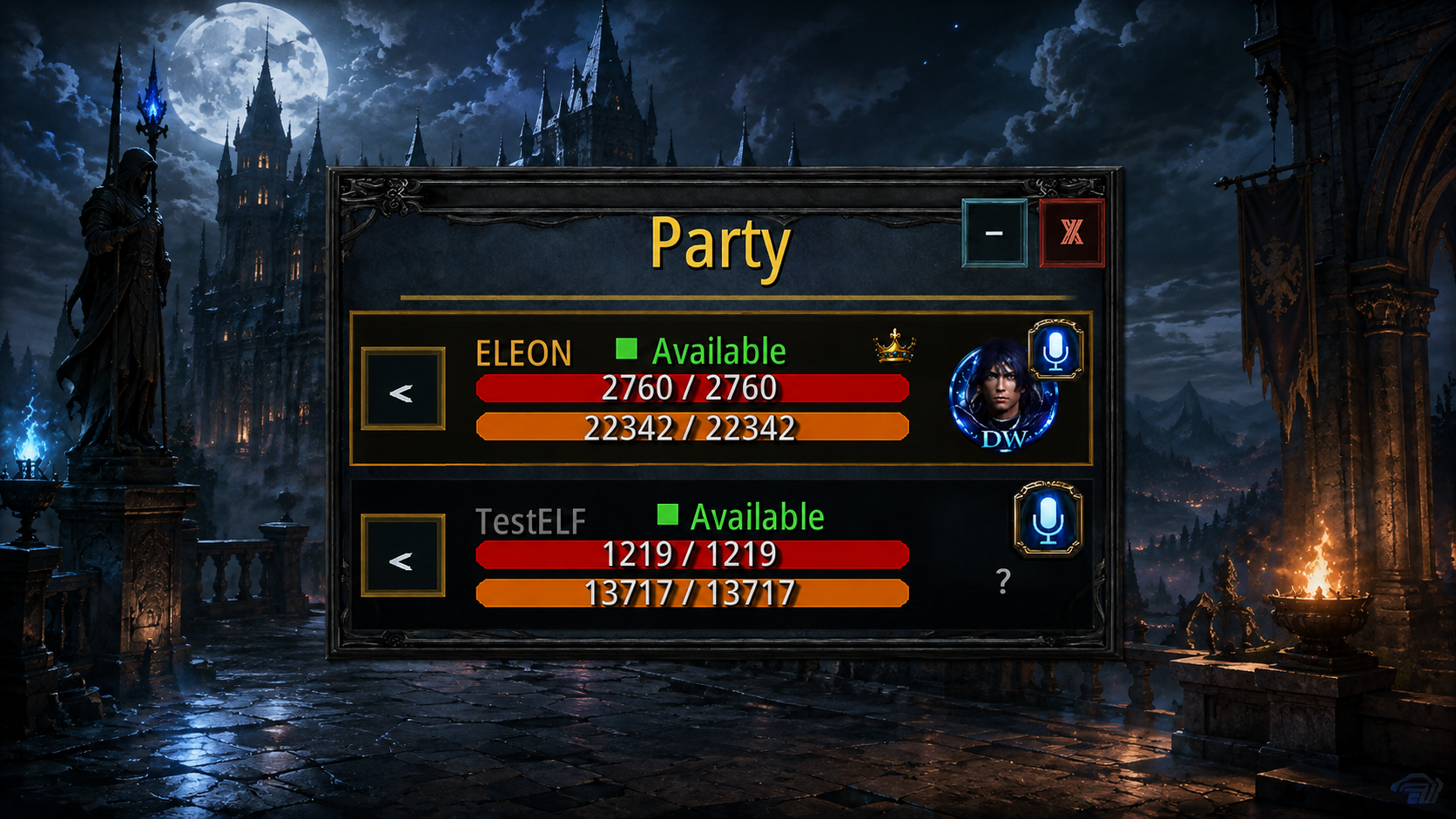
Open the Party List and press the Connect button next to your character.
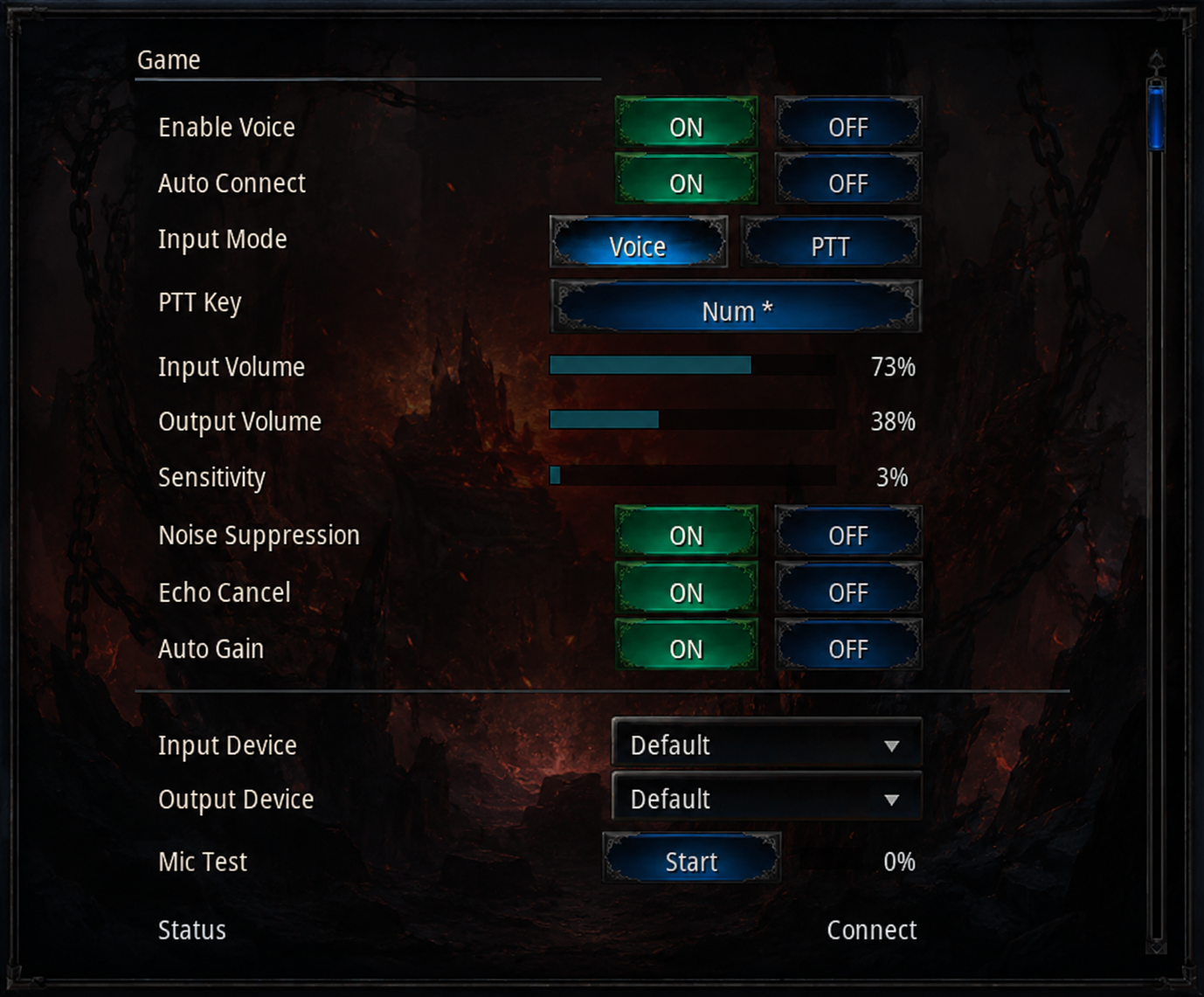
When enabled, the game automatically attempts to connect you to the party voice room whenever you are inside a party.
How Voice Party Works
Private Voice Room
When you connect, the Game Server verifies that your character is currently a member of a party.
After verification, the server generates a temporary and secure authorization token that allows the game client to join the voice room associated with that party.
Real-Time Voice Status
Connected Members
See which party members are currently connected to Voice Party.
Speaking Indicator
The interface highlights the player who is currently speaking.
Connection Status
Displays Connecting, Connected or Disconnected in real time.
Muted Members
Quickly identify party members whose voice you have muted.
Voice Transmission Modes
Automatic Voice Detection
Your microphone automatically starts transmitting when your voice exceeds the configured microphone sensitivity level.
Push to Talk (PTT)
Your microphone transmits audio only while the configured Push to Talk key is being held.
Available Settings
Test Before Connecting
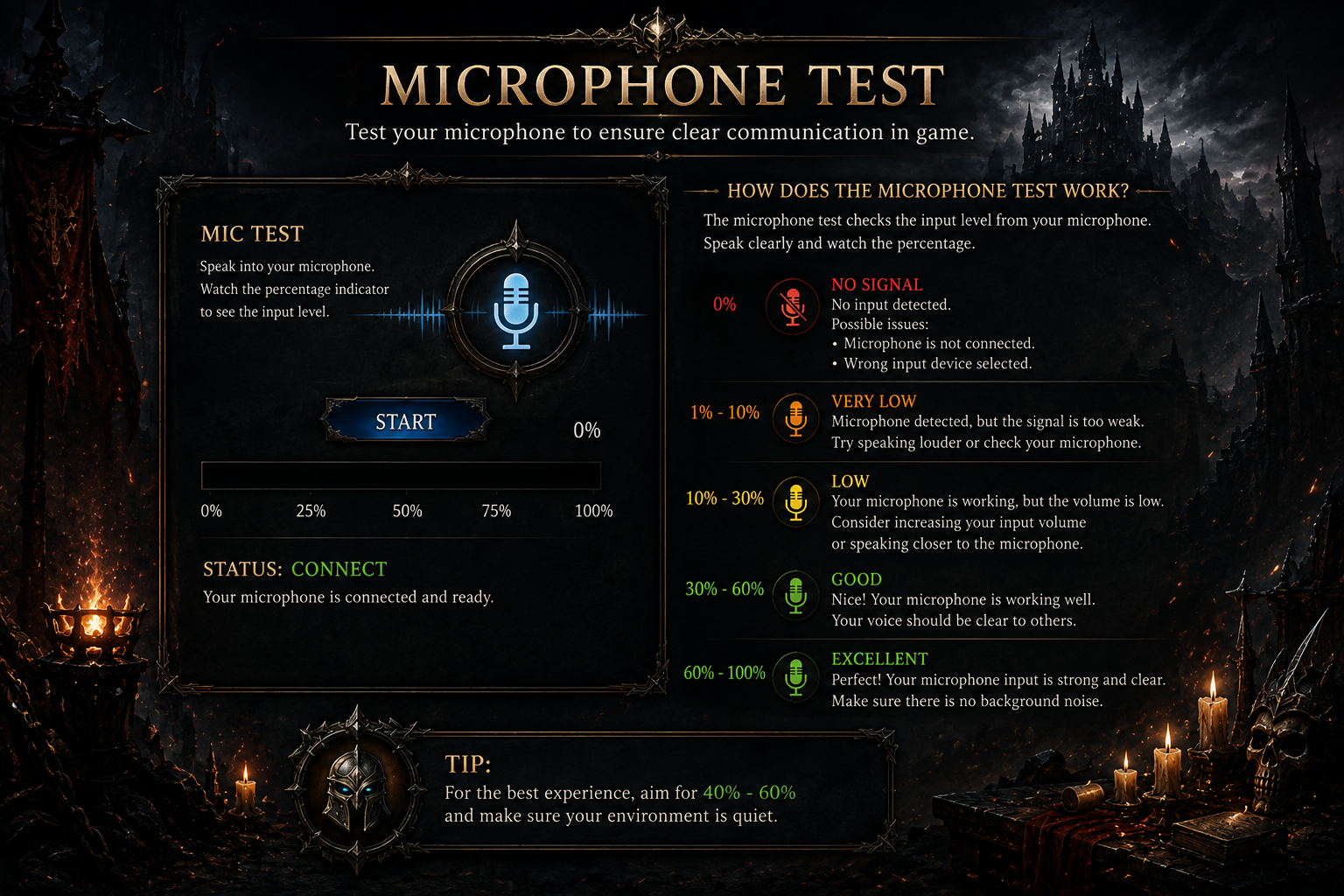
The Voice settings include a built-in Microphone Test function.
Use it to verify that the correct microphone is selected and to monitor your audio level before connecting to a party voice room.
Mute a Party Member
Open the current party member list.
Select the party member whose voice you want to disable.
Press the Mute button to stop hearing that player.
Press the same button again to restore the player's voice.
Only Affects Your Client
Muting another player affects only what you hear.
Other members of the party can continue hearing that player normally.
Voice Quality
Optimized codec designed for real-time voice communication.
High-quality mono voice processing for clear communication.
Reduces unwanted background noise while speaking.
Helps prevent feedback and speaker echo.
Automatically adjusts microphone amplification.
Efficient voice transmission suitable for busy events and battles.
Stay Connected During Every Battle
Voice Party gives your team instant in-game communication without requiring external voice applications. Coordinate events, boss fights, PvP battles and party strategies directly from the game client.